How to navigate the course platform
How to navigate this course
To begin or continue your course, click on the course title. This will take you to the course homepage, where you can see an overview of all the lessons available. Start with the first lesson by clicking on its title. Each lesson may include videos, questionnaires, reading materials, and/or downloads to support your learning experience.
Marking lessons as complete (important!)
To track your progress, you must click the ‘Mark Complete‘ button at the end of each lesson. This is essential because only lessons marked as complete will count towards your course progress. You can track your progress using the sidebar, where completed lessons will be visibly marked.
After you mark a lesson or survey as complete, you will remain on the same page. To continue, select the next lesson from the main navigation menu.
Where to find the ‘Mark Complete’ button
- Most lessons: The ‘Mark Complete’ button is located at the bottom of the page.
- After a questionnaire: Occasionally, the button may appear towards the top of the page on the right-hand side instead, as per the screenshot below. Please check both locations if you don’t see it right away.
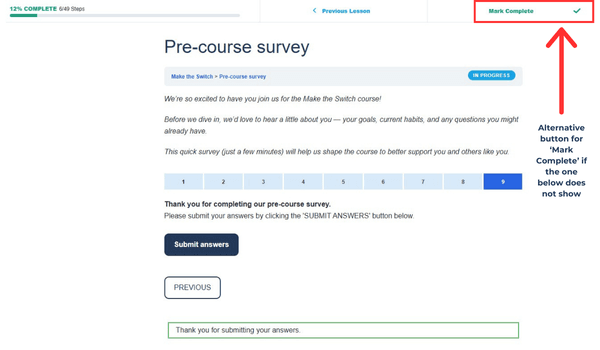
⚠️ If you skip marking a lesson as complete, it will not count towards your progress! Simply clicking ‘Next Lesson’ will not mark the current lesson as complete.
Marking a lesson incomplete
If you accidentally mark a lesson as complete before finishing it, don’t worry! You can simply click ‘Mark Incomplete‘ to undo it.
Using Vimeo video controls
Many lessons include videos hosted on Vimeo. Here’s how to customise your viewing experience:
- Volume control: Adjust the volume using the speaker icon in the player.
- Turn on closed captions (subtitles): Click the CC button on the video player to enable subtitles.
- Adjust playback speed: Click the gear icon (⚙️) and choose a faster or slower speed as needed.
- Picture-in-picture mode (desktop only): Click the picture-in-picture icon to pop the video out and continue watching while using other parts of your screen.
- Full-screen mode (mobile only): Tap the full-screen icon to expand the video for a better viewing experience. You may need to click on the video first, then you’ll see a double-ended arrow button pop up in the screen area, which you can select to make it full-screen.
Need help?
If you have any questions along the way, feel free to contact us. We’re here to help ensure you have a smooth and enjoyable learning experience!